
Maker onboarding
Set up your perps maker account, connect a bot, and verify your first quote and fill. Use the dashboard for account setup, or the SDK example if you prefer file keys and commands. Both routes use a bot to publish quotes.
The examples use SDK 7.0.4 / IDL 0.10.2. Use the network and compatible versions supplied by your Flint contact. To run your own test network, start with Local maker testing.
1. Get access
Ask your Flint contact for:
- A reserved perps maker ID, linked to your organization and login email.
- Your dashboard, RPC and gateway URLs, supported collateral and a test market.
- How to obtain collateral tokens.
Your perps maker ID is the trader account ID used as TRADER_ID in the SDK.
It is separate from your spot maker ID. The operator must set perp_maker_id
on your organization before you can access the perps dashboard.
If you already own a perps account on this network and program, give your Flint contact its trader ID, owner wallet address and login email. Ask them to confirm the owner and link the same ID to your organization. Skip account creation in step 4; check collateral and bot permissions there. A perps-only organization needs no spot maker ID.
Sign in with your email code and select Perps. This login gives dashboard access; your owner wallet and bot key authorize transactions.
2. Prepare the bot
Use your existing bot with the approved SDK, or follow SDK example setup to download, configure and run the Rust or TypeScript perps maker example. That page covers tools, package access, downloads and network configuration.
For Rust, get an SDK access token from Perps → Developer → Get SDK credentials. The server creates your Kellnr token on the first request and returns it on later requests. Contact Flint if this step fails.
TypeScript uses separate GitHub Packages access. A Kellnr token does not grant access to those packages.
3. Prepare keys and funds
| Role | Purpose | Needs |
|---|---|---|
| Owner wallet | Controls funds and bot permissions | Collateral and SOL for account rent |
Bot key (QUOTER_KEYPAIR) | Signs quotes | Flint-provided fee SOL |
Use a fresh bot key. Keep file keys outside the repository. The SDK key and configuration steps show how to generate keys and set the example's variables. The owner is separate from Flint's protocol administrator.
Flint sponsors fee SOL for maker wallets. The signing wallet remains the transaction fee payer. Account rent and collateral are separate from network fees. USDC is a useful first test asset when supported. For SOL collateral, open Funds, select WSOL as the asset and Native SOL as the wallet source. The dashboard wraps SOL during the deposit. The CLI example requires tokens in the owner's WSOL token account.
4. Create and fund the account
Open Perps → On Chain. Use the checklist to track account setup, your first quote and a maker fill. Check your perps maker ID and connected owner wallet.
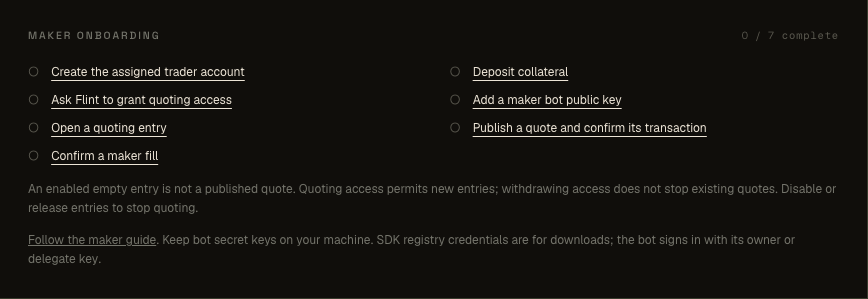
- Create the account if needed.
- In Funds, deposit collateral from the owner wallet.
- In Delegates, grant the fresh bot key the Maker bot role (Trade + Quote) and choose an expiry.
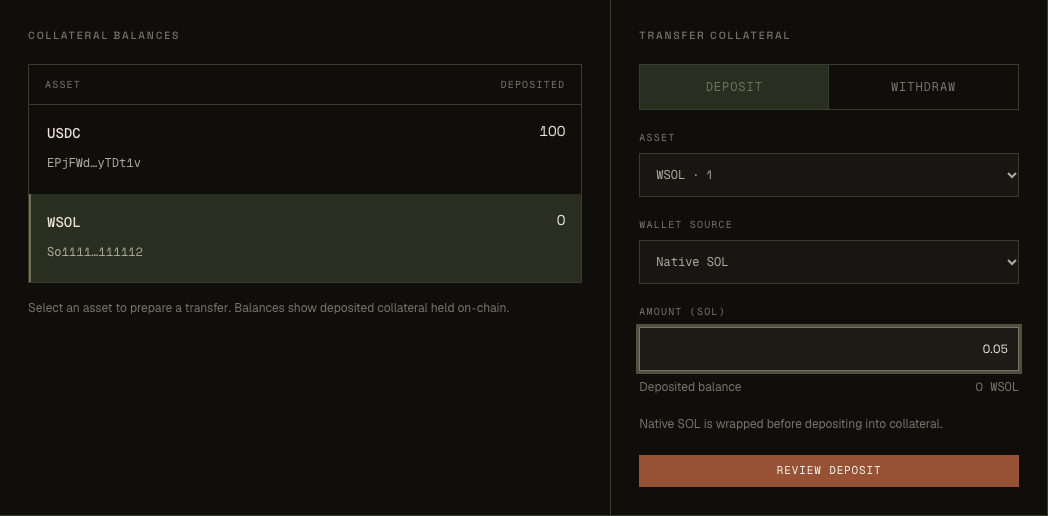
For a native SOL deposit, select WSOL and the Native SOL wallet source in Funds.
Check collateral and account health before quoting. Collateral is shared across the account's markets. The owner signs the first deposit of each asset. Token deposits use the owner's associated token account.
Use SDK commands for these owner actions
From the configured example directory:
cargo run --locked -- setup
cargo run --locked -- deposit
npm run start -- setup
npm run start -- depositsetup checks ownership, creates a missing trader and grants Trade + Quote with
no expiry. See Delegate expiry to change
that default. Do not run setup for a key already granted in the dashboard.
Choose one route for each owner action.
5. Open a market slot
After the account exists, ask your Flint contact to check MAY_QUOTE and grant it if missing. This account permission is separate from the bot's Trade + Quote grant.
Run state to check the selected market. Reuse an entry returned for your
PERP_ID; if none is returned, open a slot in the dashboard or run:
cargo run --locked -- open
cargo run --locked -- state
npm run start -- open
npm run start -- stateA new slot is disabled and empty. Check that state shows the selected
PERP_ID and record its entry index. See
Slot rules if opening fails.
6. Publish a quote and verify a fill
Run markets to check the selected market's grid and mark. Stop if the mark
is missing or stale, or account health is unavailable. Prices use ticks, sizes
use lots, and expiry uses slots. Use
Choose quote inputs for conversion and rounding.
If you select another perp, repeat step 5 before quoting it.
Use a small size your collateral supports and prices near the mark. These
commands publish one level per side. For local inspection only, 2000 slots
leaves time to read the result; choose a shorter expiry and refresh interval
appropriate to your bot on another network.
cargo run --locked -- markets
cargo run --locked -- quote order-list <bid-ticks> <ask-ticks> <lots> 2000
cargo run --locked -- state
npm run start -- markets
npm run start -- quote order-list <bid-ticks> <ask-ticks> <lots> 2000
npm run start -- stateKeep one writer per trader and market. This example publishes once; it does not run a quote-refresh loop. Use Quoting when building your bot.
Save the printed transaction signature. Require confirmed or finalized
RPC status with err: null, then check both sides in state before expiry.
After a timeout, reconcile the signature
before rebuilding.
The fills command requires the server's historical store. Check a fill:
- Have an independently funded taker cross a small quote. Save the taker's confirmed transaction signature.
- Run
fillsand find that signature. - Run
accountto check the maker's position. - Check the taker's position with its own client.
A visible quote alone does not prove it can fill.
The first test is complete when the dashboard's seven checks are complete, or the SDK shows the same evidence:
- Account, collateral and an active Trade + Quote delegate.
- MAY_QUOTE permission and an open slot.
- A confirmed quote, a confirmed maker fill and the resulting position.
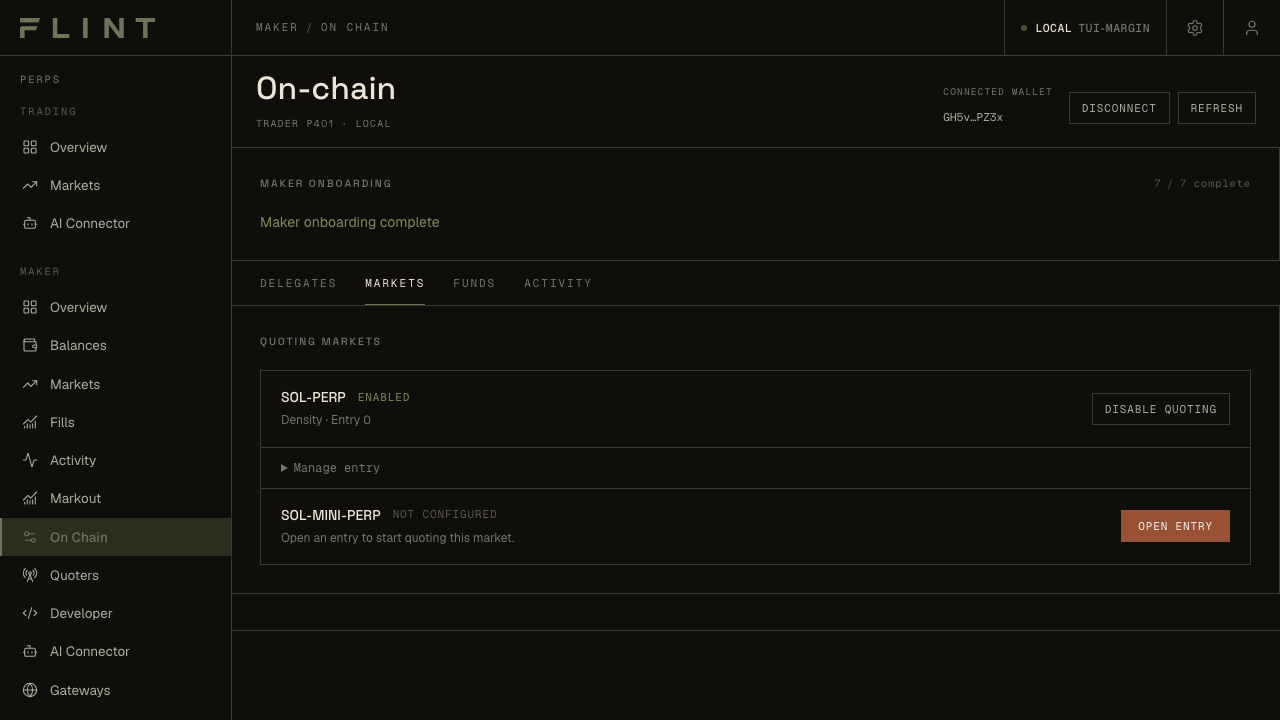
The seven checks confirm account setup, a quote and a maker fill.
7. Finish the test
Stop the writer, disable each slot and verify its state. Cancel resting orders and close filled positions separately: disabling a quote does neither. Follow Shutdown for settlement, withdrawal and revocation.
Before continuous quoting, review Risk and inventory and Key rotation. For errors, use Commands and recovery.